> ## Documentation Index
> Fetch the complete documentation index at: https://docs.9pic.ai/llms.txt
> Use this file to discover all available pages before exploring further.
# Advanced Config
> Event visibility, page password, call-to-action buttons, and image cache refresh.
## Overview
The **Advanced Config** product holds event-level settings that shape the public gallery. Its **Overview** tab is a single inline-editable surface with four sections — **Visibility**, **Page Password**, **Call to Action**, and **Image Cache** — plus a **Save / Discard** footer. The Advanced product is available on **all plans**.
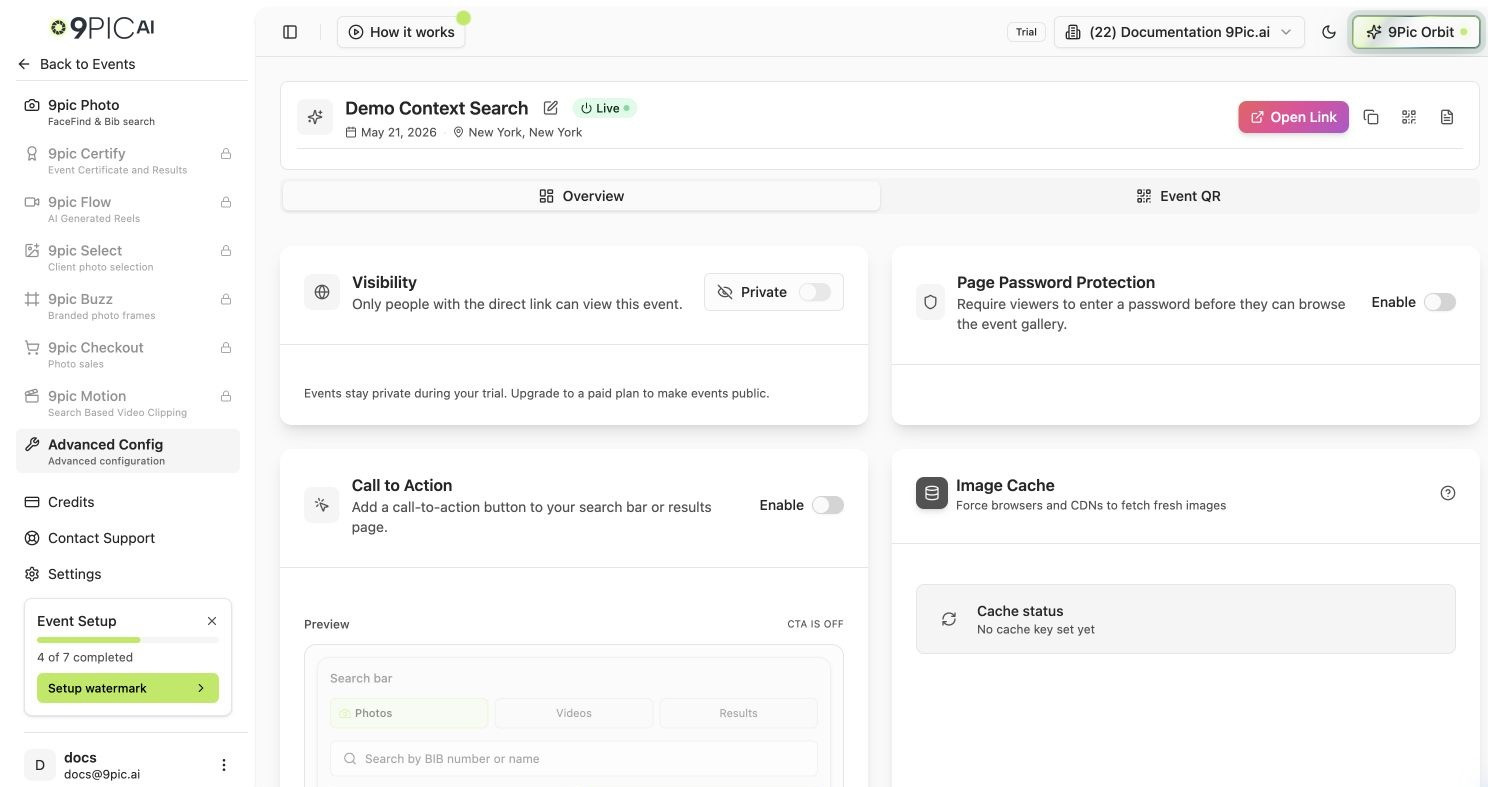 Changes here are staged until you click **Save**. If you switch tabs or products with unsaved changes, the dashboard warns you before leaving.
## Visibility
A **Private / Public** toggle that controls whether the event is publicly listed. Set it to **Private** to keep the event unlisted (reachable only via a direct link), or **Public** to list it.
On the **Trial** plan, visibility stays **Private** and can't be changed. Upgrade to a paid plan to make events public.
## Page Password
Require a password before participants can view the gallery.
| Field | What it does |
| ---------------------------- | --------------------------------------------------------------------- |
| **Page Password Protection** | Turns the password gate on or off |
| **Page Password** | The password participants must enter (required when protection is on) |
## Call to Action (CTA)
CTA buttons send participants from your gallery to an external page — registration, feedback, or a store. Configure them here:
| Option | What it does |
| --------------------- | ------------------------------------------------------------- |
| **Target URL** | Where the button sends people. Use a full `https://` URL |
| **Button Text** | The label, e.g. "Register for 2026" |
| **Display Locations** | **Search Bar**, **Search Results**, or both |
| **Button Style** | Default, Outline, Secondary, or a minimalist Ghost/Link style |
### Pass Participant Context to Your URL
When a participant clicks a CTA, 9Pic appends query parameters to your Target URL so you can personalize the destination:
| Parameter | Description |
| ----------------- | ----------------------------------------------------------- |
| `ref` | The gallery URL the participant came from (Base64-encoded) |
| `eventId` | The event's ID |
| `bibNumber` | The bib they searched (if they used bib search) |
| `selfieRequestId` | Their selfie search request ID (if they used selfie search) |
Because `ref` is Base64-encoded, decode it on your page:
```javascript theme={null}
const params = new URLSearchParams(window.location.search);
const encodedRef = params.get('ref');
if (encodedRef) {
const originalUrl = atob(encodedRef);
console.log('User came from gallery:', originalUrl);
}
```
Use `bibNumber` to pre-fill a registration form. A participant who searched bib **529** lands on `https://my-race.com/register-2026?ref=...&eventId=123&bibNumber=529`, and your page can welcome them by looking up bib 529.
## Image Cache
If you change branding or watermarks and participants still see old images, use **Refresh Image Cache** to force the latest versions to load. This is an immediate action (it doesn't wait for Save).
## Common Questions
In the search bar and/or search results, depending on the display locations you choose.
Only if viewers are still seeing the old watermark. Refreshing forces the latest processed images to load.
Save before leaving. The Advanced Overview stages edits and warns you about unsaved changes, but discarding will drop them.
## Next Steps
Generate and customise the event QR code.
Download originals (moved here from Advanced) and delete photos.
Changes here are staged until you click **Save**. If you switch tabs or products with unsaved changes, the dashboard warns you before leaving.
## Visibility
A **Private / Public** toggle that controls whether the event is publicly listed. Set it to **Private** to keep the event unlisted (reachable only via a direct link), or **Public** to list it.
On the **Trial** plan, visibility stays **Private** and can't be changed. Upgrade to a paid plan to make events public.
## Page Password
Require a password before participants can view the gallery.
| Field | What it does |
| ---------------------------- | --------------------------------------------------------------------- |
| **Page Password Protection** | Turns the password gate on or off |
| **Page Password** | The password participants must enter (required when protection is on) |
## Call to Action (CTA)
CTA buttons send participants from your gallery to an external page — registration, feedback, or a store. Configure them here:
| Option | What it does |
| --------------------- | ------------------------------------------------------------- |
| **Target URL** | Where the button sends people. Use a full `https://` URL |
| **Button Text** | The label, e.g. "Register for 2026" |
| **Display Locations** | **Search Bar**, **Search Results**, or both |
| **Button Style** | Default, Outline, Secondary, or a minimalist Ghost/Link style |
### Pass Participant Context to Your URL
When a participant clicks a CTA, 9Pic appends query parameters to your Target URL so you can personalize the destination:
| Parameter | Description |
| ----------------- | ----------------------------------------------------------- |
| `ref` | The gallery URL the participant came from (Base64-encoded) |
| `eventId` | The event's ID |
| `bibNumber` | The bib they searched (if they used bib search) |
| `selfieRequestId` | Their selfie search request ID (if they used selfie search) |
Because `ref` is Base64-encoded, decode it on your page:
```javascript theme={null}
const params = new URLSearchParams(window.location.search);
const encodedRef = params.get('ref');
if (encodedRef) {
const originalUrl = atob(encodedRef);
console.log('User came from gallery:', originalUrl);
}
```
Use `bibNumber` to pre-fill a registration form. A participant who searched bib **529** lands on `https://my-race.com/register-2026?ref=...&eventId=123&bibNumber=529`, and your page can welcome them by looking up bib 529.
## Image Cache
If you change branding or watermarks and participants still see old images, use **Refresh Image Cache** to force the latest versions to load. This is an immediate action (it doesn't wait for Save).
## Common Questions
In the search bar and/or search results, depending on the display locations you choose.
Only if viewers are still seeing the old watermark. Refreshing forces the latest processed images to load.
Save before leaving. The Advanced Overview stages edits and warns you about unsaved changes, but discarding will drop them.
## Next Steps
Generate and customise the event QR code.
Download originals (moved here from Advanced) and delete photos.