> ## Documentation Index
> Fetch the complete documentation index at: https://docs.9pic.ai/llms.txt
> Use this file to discover all available pages before exploring further.
# Event QR
> Generate, customise, and download a QR code for your event gallery.
## Overview
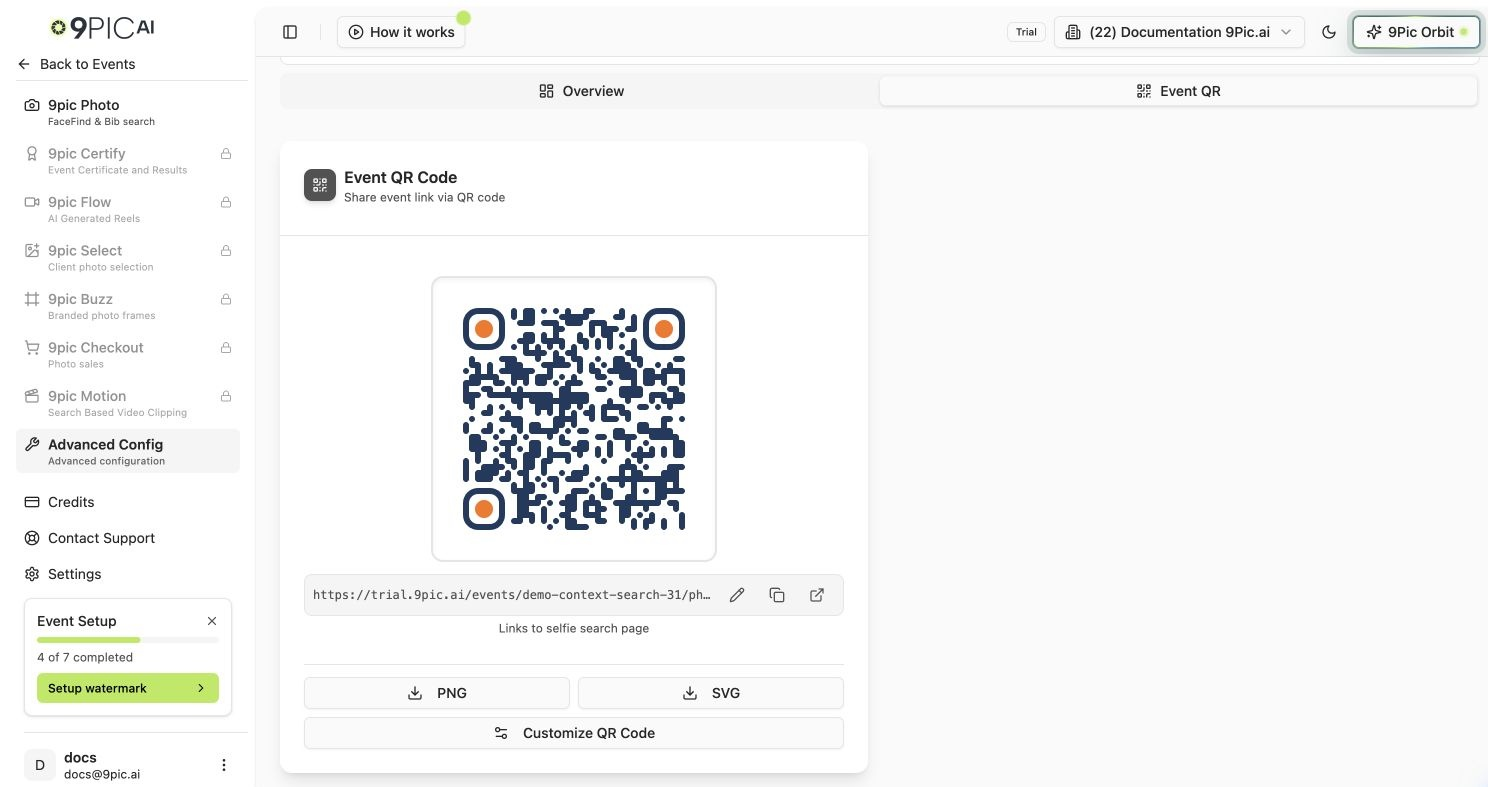
The **Event QR** tab (inside the [Advanced Config](/dashboard-guide/advanced/overview) product) generates a styled QR code that takes people straight to your event. Print it on bibs, banners, or signage so participants can find their photos instantly.
 ## What the QR Links To
| Situation | The QR points to |
| ------------------------- | ----------------------- |
| **Selfie Search enabled** | The selfie search page |
| **Selfie Search off** | The event photo gallery |
| **Custom link set** | Whatever URL you enter |
The card shows the destination URL with three quick actions: **Edit** (set a custom link), **Copy**, and **Open**. If the event has a logo, it's embedded in the centre of the QR automatically.
## Download & Share
Confirm the URL under the QR is correct (gallery, selfie search, or your custom link).
Click **PNG** for print/social or **SVG** for a scalable vector you can resize without quality loss.
Click **Customize QR Code** to open the styling modal and adjust colours and dots to match your branding.
Use the **SVG** download for large-format printing (banners, backdrops) so the code stays crisp at any size.
## Common Questions
Yes. Click the **Edit** (pencil) icon next to the link and enter a custom URL, or **Reset** to go back to the default gallery/selfie link.
When Selfie Search is enabled for the event, the default QR links to the selfie search page so participants can find themselves faster. Turn it off in [Photo Configuration](/dashboard-guide/photos/configuration) or set a custom link.
The logo is pulled from your event branding. Add an event logo in [Photo Branding](/dashboard-guide/photos/branding) and regenerate.
## Next Steps
Visibility, page password, CTA, and image cache.
Add the event logo embedded in the QR code.
## What the QR Links To
| Situation | The QR points to |
| ------------------------- | ----------------------- |
| **Selfie Search enabled** | The selfie search page |
| **Selfie Search off** | The event photo gallery |
| **Custom link set** | Whatever URL you enter |
The card shows the destination URL with three quick actions: **Edit** (set a custom link), **Copy**, and **Open**. If the event has a logo, it's embedded in the centre of the QR automatically.
## Download & Share
Confirm the URL under the QR is correct (gallery, selfie search, or your custom link).
Click **PNG** for print/social or **SVG** for a scalable vector you can resize without quality loss.
Click **Customize QR Code** to open the styling modal and adjust colours and dots to match your branding.
Use the **SVG** download for large-format printing (banners, backdrops) so the code stays crisp at any size.
## Common Questions
Yes. Click the **Edit** (pencil) icon next to the link and enter a custom URL, or **Reset** to go back to the default gallery/selfie link.
When Selfie Search is enabled for the event, the default QR links to the selfie search page so participants can find themselves faster. Turn it off in [Photo Configuration](/dashboard-guide/photos/configuration) or set a custom link.
The logo is pulled from your event branding. Add an event logo in [Photo Branding](/dashboard-guide/photos/branding) and regenerate.
## Next Steps
Visibility, page password, CTA, and image cache.
Add the event logo embedded in the QR code.